Android – eduroam configuration
Basic information
The manual is designed for Android version 4.0 and later. Versions 1.x and 2.x are not supported and may not work (cryptographic algorithm incompatibility).
The user-friendly setting supported by the operating system is not secure because the authentication server (its name and certification authority) is not checked. In Android 4.3 and later, use the geteduroam configuration application to set up.
The password for eduroam is different from the password for school systems. You can set or change it at https://eduroam.vse.cz/password/.
If you’re unable to connect, check out the most common connectivity issues.
Configuration using geteduroam
To set up Eduroam connection using the geteduroam application please follow the following steps:
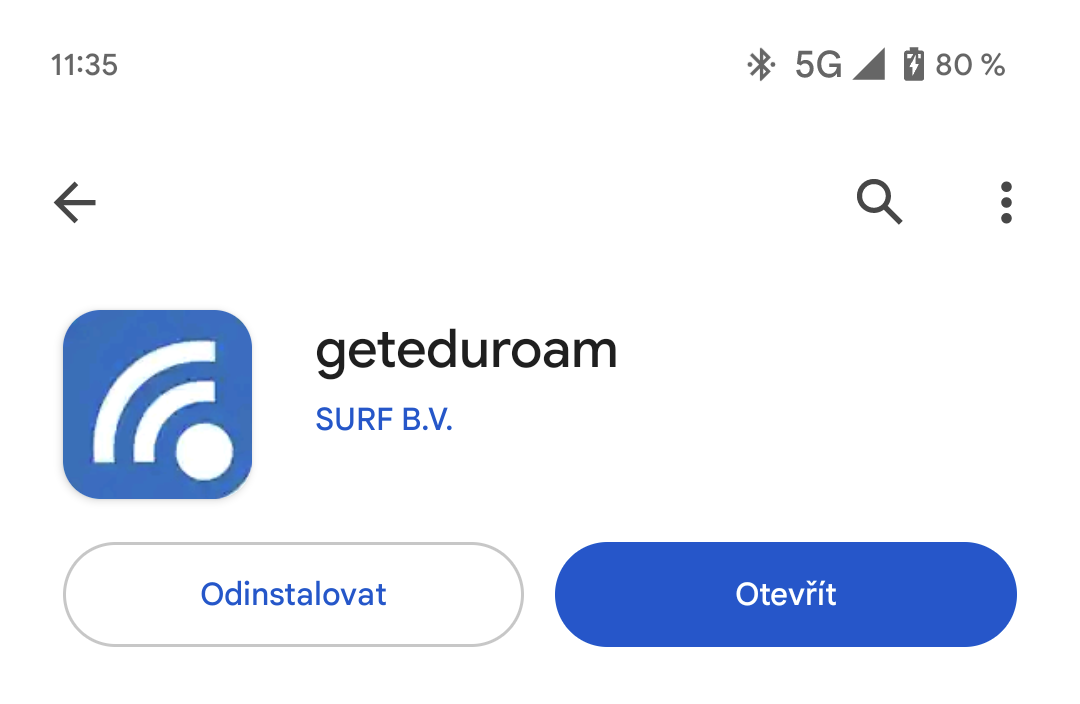
1. Download the application geteduroam from Google Play
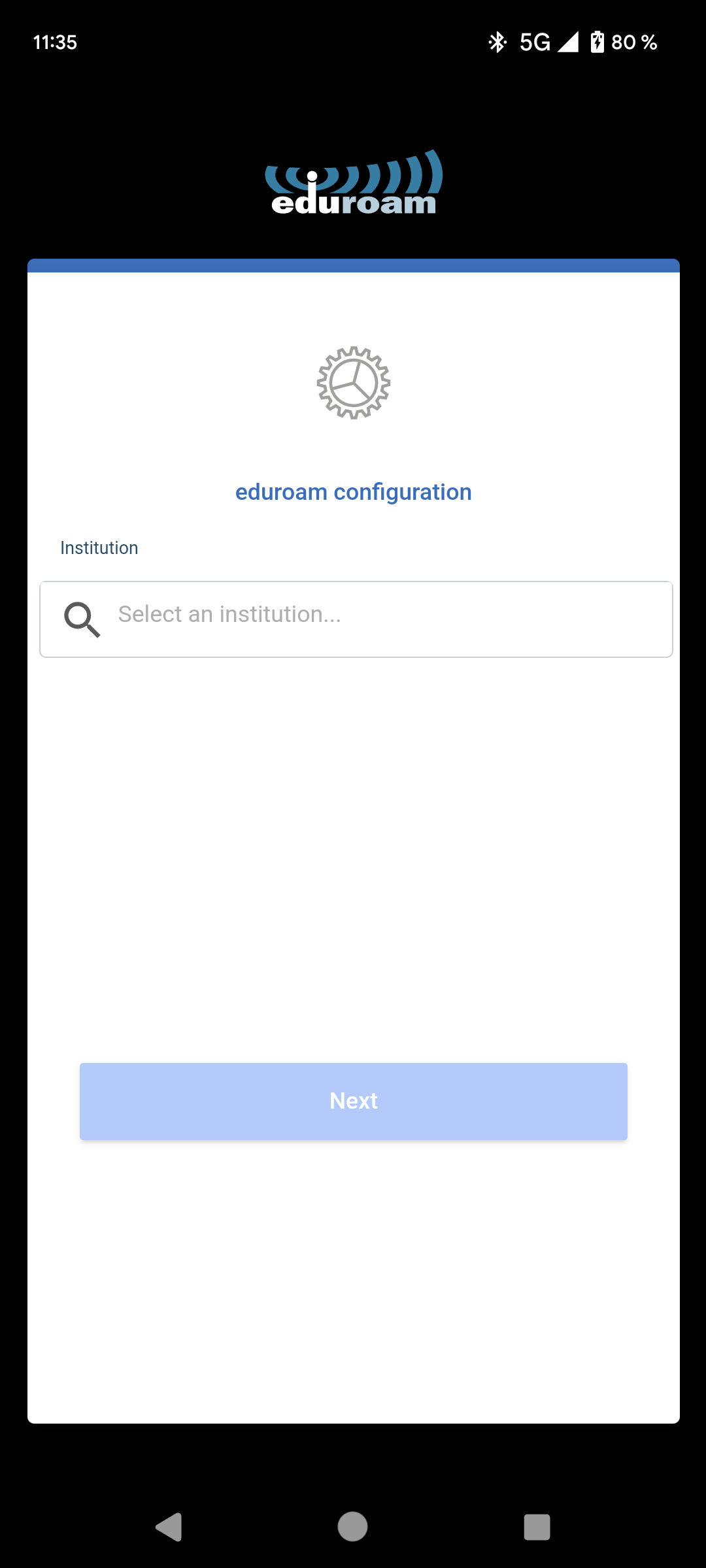
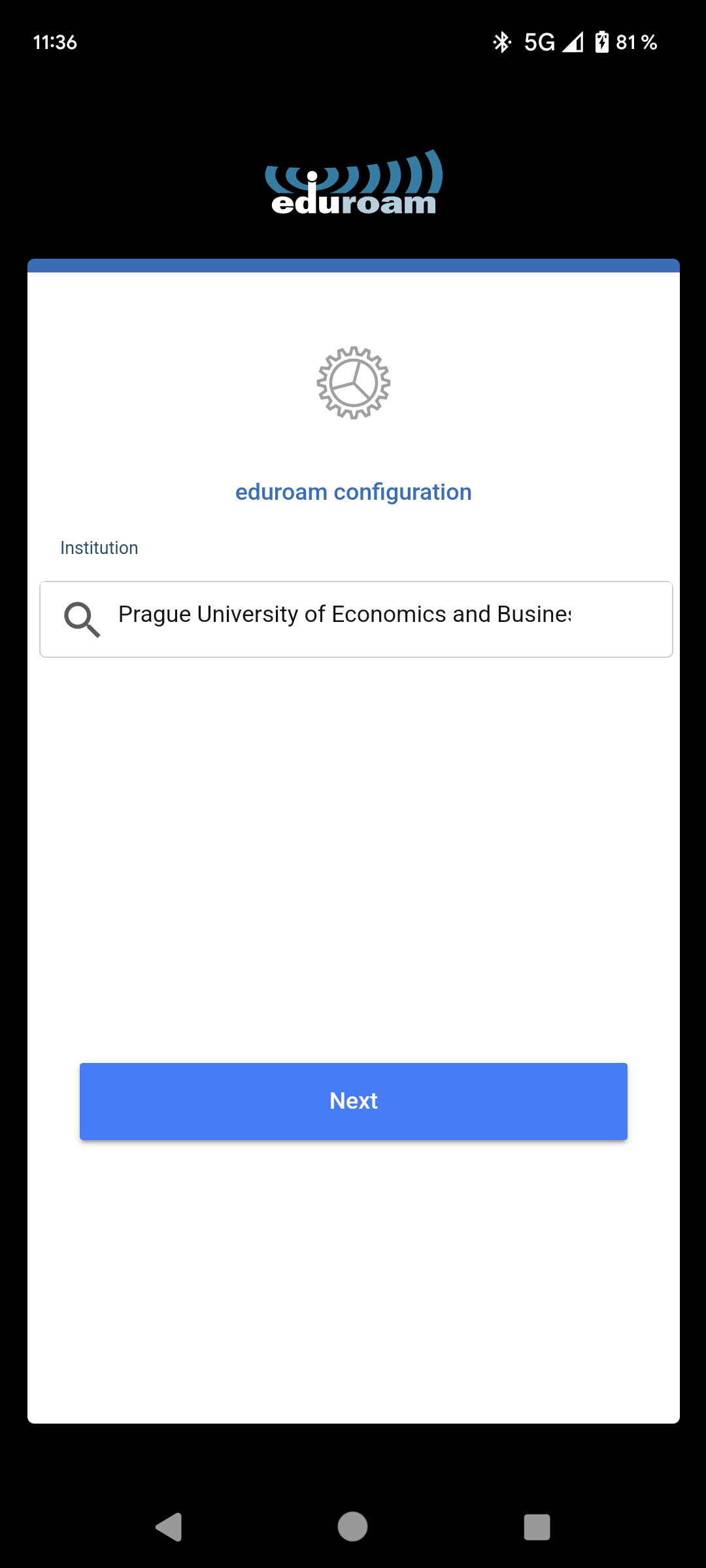
2. Open the application and select Prague University of Economics and Business from the list (attention, application does NOT know Czech name of our school)
3. Input your credentials for the Eduroam network. If you don’t recall, you can set up a new password here. Remember that the username always contains the domain name @vse.cz
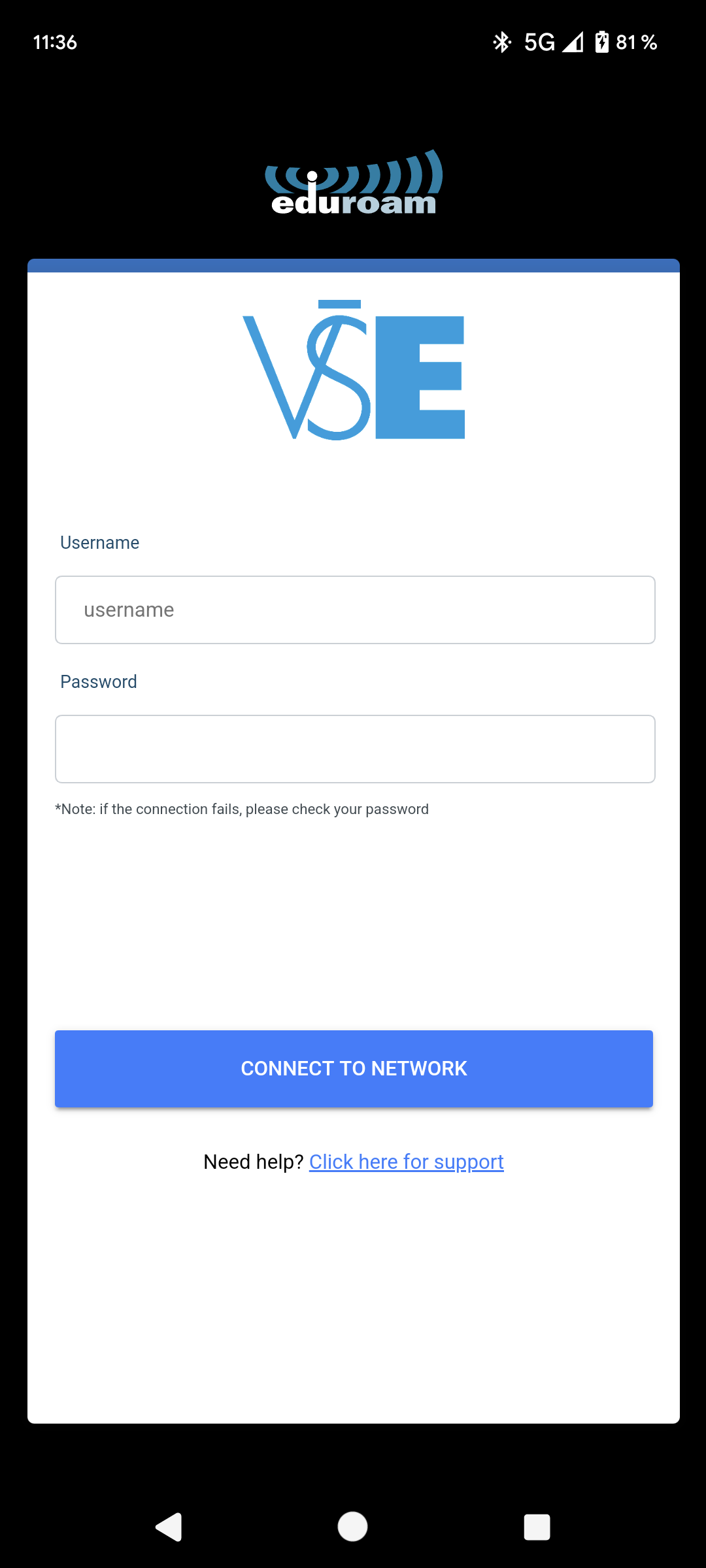
4. After tapping the Connect to Network button, Eduroam network profile will be created. You need to confirm the saving of the profile in the next popup window by tapping the Ano/Yes button.
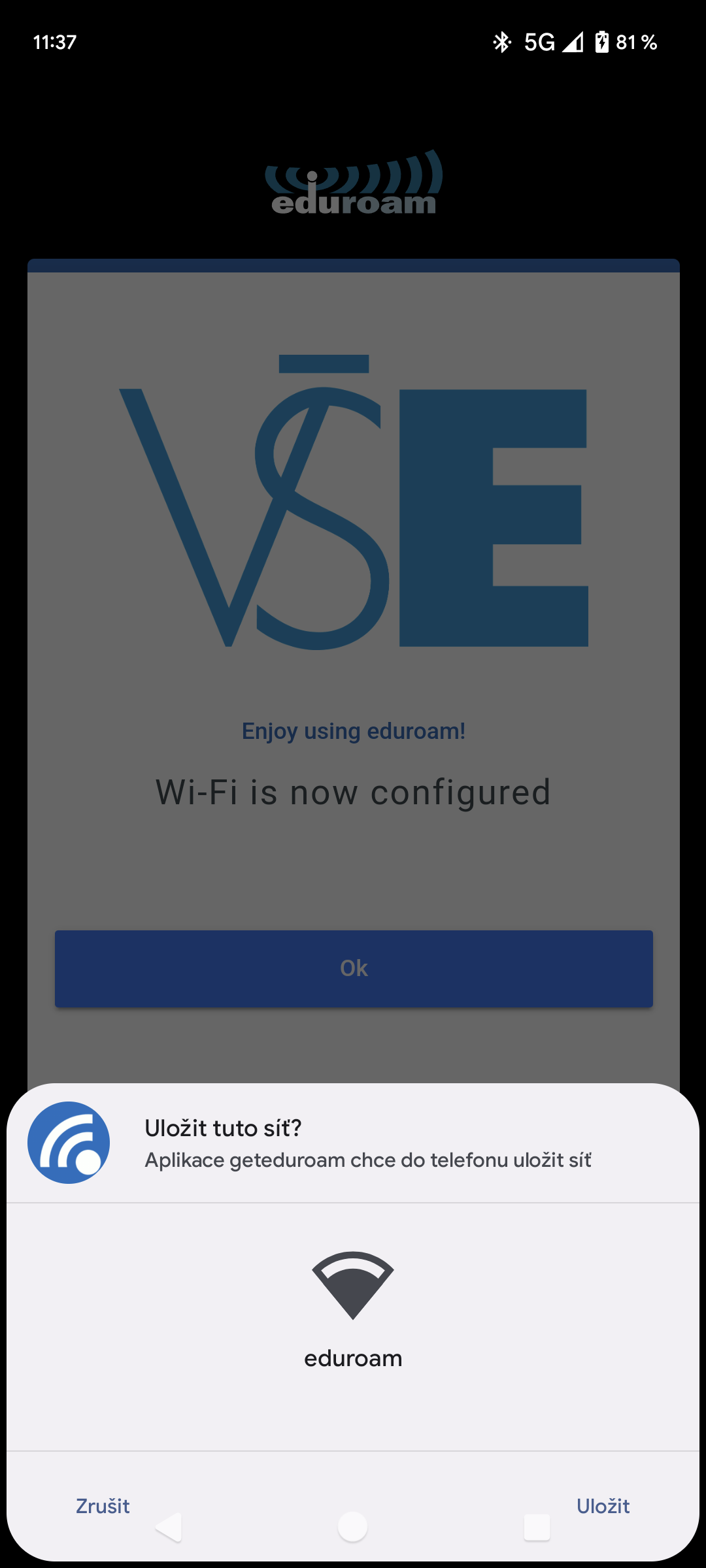
After finishing this process, your phone should connect to the Eduroam network successfully. Application geteduroam is then no longer necessary and you may remove it from your device.
Screen lock settings
Android supports multiple ways to lock your screen. To install a certificate, you need a higher level of security:
• Swipe – not enough
• gesture (character) – probably not enough
• PIN – sufficient
• password – sufficient
• Fingerprint – from version 5.1, on some manufacturers even 5.0, sufficient
• bracelet / watch / ring – external device connected via bluetooth, we do not know
• user’s face – we do not know
Screen lock settings – instructions from Google.
First connection without security
The first connection to eduroam is user-friendly. Unfortunately, the certificate and certificate server authentication settings are missing. Once connected, either download eduroamCAT or install the certificate and complete the configuration manually. There is no need for a screen lock for an unsecured connection, for further security yes.
-
Find and tap Settings in the menu. Next, touch Wi-Fi to continue (the path can be different in various Android versions).
-
A list of available Wi-Fi networks will be displayed. Find and click on the eduroam network.
-
You will see the network settings, which you will fill in according to the attached picture (EAP method: PEAP, Phase 2 authentication: MSCHAPV2, CA certificate not to be filled (or Do not validate), Anonymous identity: not to be filled, Identity: username@vse.cz, Password: eduroam password). Click on Connect to continue.
-
If you have filled in correctly, you will be shown the list of available networks again, with the text Connected next to the eduroam network. Now you can close the settings, your device is connected to the eduroam network.
Certificate installment
Screen lock must be set – otherwise the certificate cannot be set.
Download your USERTrust RSA Certification Authority certificate in your device’s default browser. When installing the certificate, you will be asked for the name of the certificate, enter a meaningful name.
If you have a question about using a certificate, choose Wi-Fi:
To install the certificate you can try other ways – send it by e-mail, copy it from your computer, etc. You can download the certificate directly from USERTrust RSA Certification Authority website (DER format, .crt file extension).
Eduroam configuration editing
Only the certificate authority can be set manually, the authentication server name cannot be specified. You can also edit without connecting to the eduroam network.
-
Find and tap Settings in the menu. Continue with Wi-Fi. You should see a list of available and known networks. Long-click on eduroam until you see a menu with the option to edit the configuration.
-
Find the CA Certificate parameter and select the name you entered when installing the certificate from the menu:
-
Optionally enter an anonymous identity: anonymous@vse.cz