Student’s Portal agenda
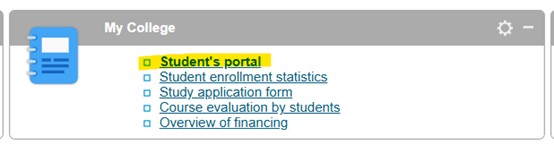
After you log in to InSIS, the Personal administration appears with several applications displayed. In the section My College, you can find the Student’s Portal where you can carry out many important student tasks and operations.
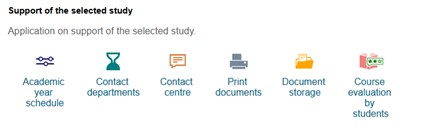
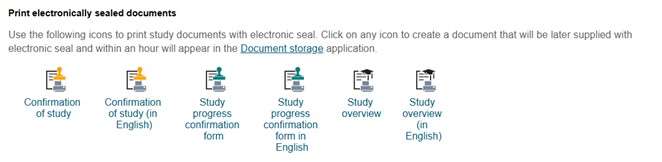
In the „Print documents“ section, you can print electronically sealed documents, such as Confirmation of Study. When you select an icon to the relevant confirmation, the document will be later supplied with electronic seal and will appear within an hour in the Document storage application for you to download it.
Important application throughout the study period is the Contact centre as all the communication and requests are processed through the Contact centre. You can find there all of your past queries (“My queries”) as well to start a new query in the „Searching for solution“ section. In the Searching for solution section, there is a Forms folder and several subfolders prepared for specific areas of communication, i.e. Study Issues. It is necessary to select the correct subfolder which contains specific forms from the given area. In case you don’t find any suitable area or form for your request, you can always use the Forms folder and form of General application/query.

Notifications about all status changes related to your request are sent by email therefore you don’t have to proactively monitor the status of the request yourself.
The Contact centre application can be found both in the Student’s portal and in own separate agenda (eAgenda section) in the dashboard. Both applications are identical and lead to the same page.
Back in the main menu of the Student’s Portal, in the header section you can see selection of applications where you can take further actions and display information about your studies.

Coursework submissions serves for submitting papers and projects is a room reserved by a teacher for the students where they can individually or in groups submit their homework, case studies, projects or other assignments. Each coursework submission is limited in time and set up for the individual seminars or centrally for the whole course.
The table shows all submission places that have been set up for the courses you attend in the current period. The “Open till” column defines when the coursework submission is closed. In the next column you can see the name of a set of topics and a list of topics you have signed up for and which have been approved by the teacher. A coursework submission is linked to the whole course. In the “Files” column you can see how many files you have entered to the coursework submission. Click on the icon in column “Instructions” to see the instructions entered by the teacher for the coursework submission.
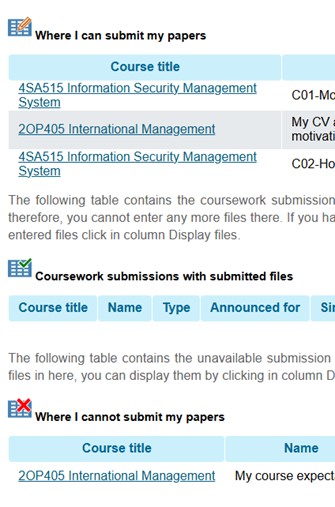

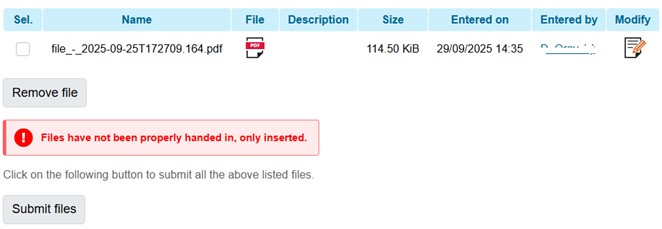
The process of submission of documents/files has three separate steps. For the correct file submission you need to comply with all three steps. Firstly, you insert the file. After your selected file(s) are inserted you submit them. The final step of confirmation needs to be done by clicking on “Confirm submission” button.


In addition, comments may also appear in the „My lectures sheet“, also found in the Student‘s Portal. This application shows students information recorded and made available by lecturers about their attendance, class activities and e-test evaluation. It is up to the lecturers whether they will use the possibility of electronic attendance and provided sheets to evaluate the students’ work and their activity in seminars and publish the data.
Further information about other applications can be found under the question mark in the help menu.
